We are happy to announce that Saint Mary's University is now able to offer Microsoft Office FREE for current SMUMN Faculty, Staff Students. Please follow the directions below to install Office (PC or Mac) for free.
1. Go to http://portal.office.com
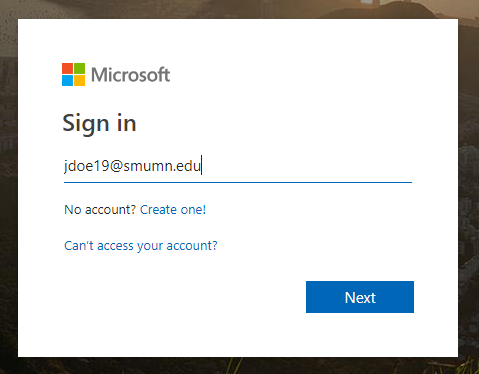
2. Log in using your SMUMN email address and Student/Faculty Portal password.
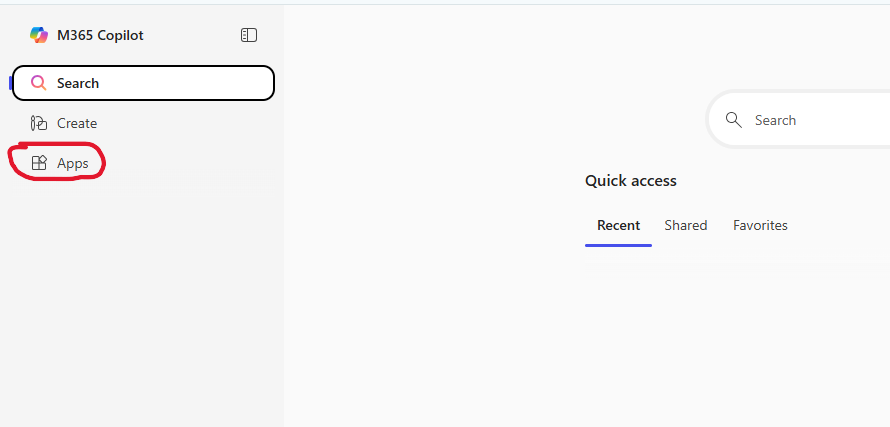
3. After logging in, click on "Apps" at the left side of the screen.
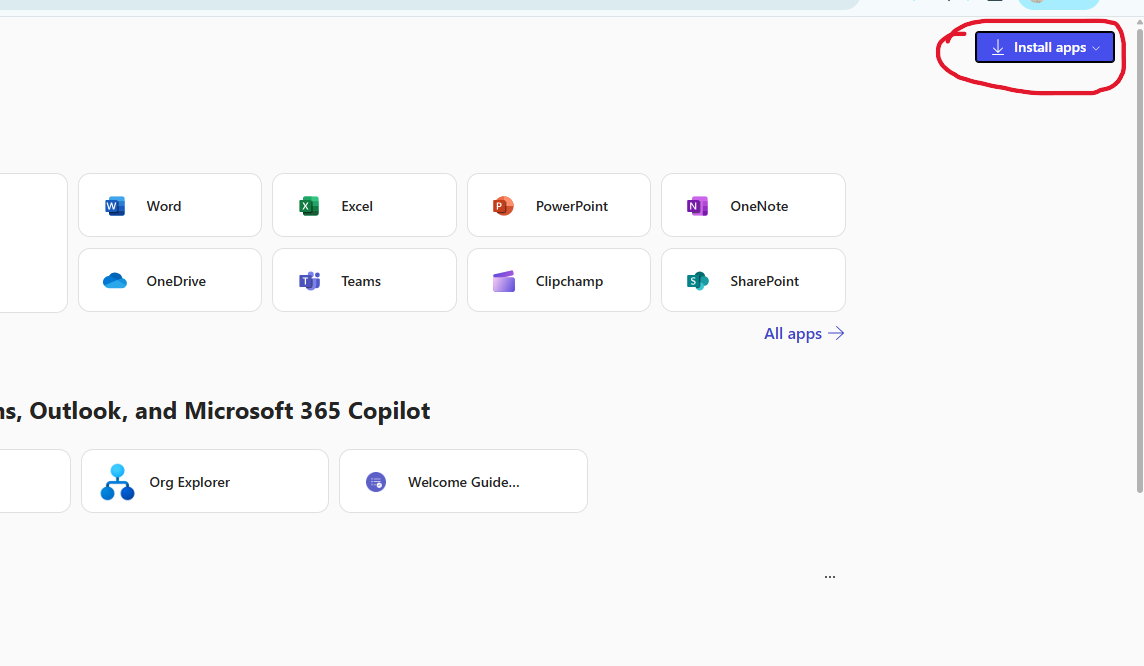
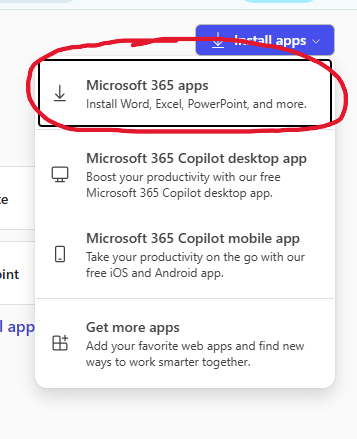
4. Next, click "Install apps" at the top right side of the screen and select Microsoft 365 apps.
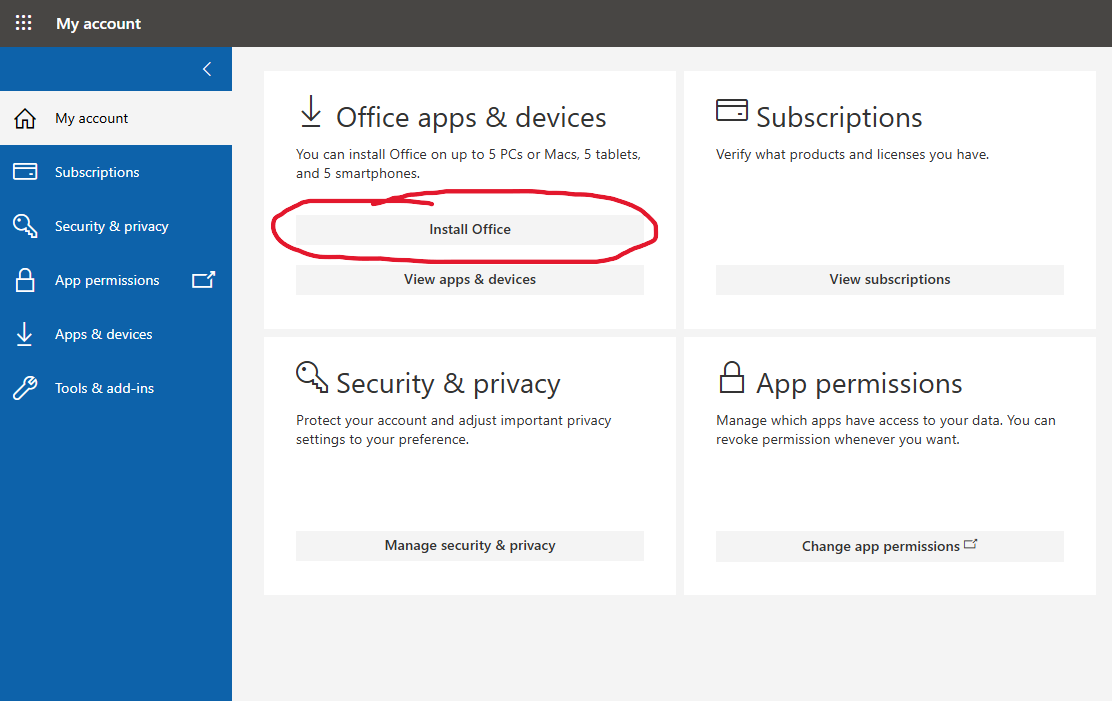
5. Under "My account", click "Install Office". The installer will be downloaded.
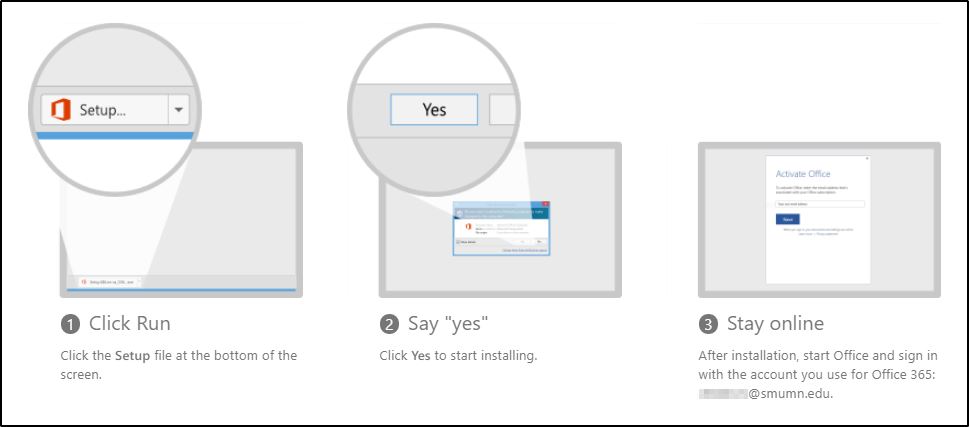
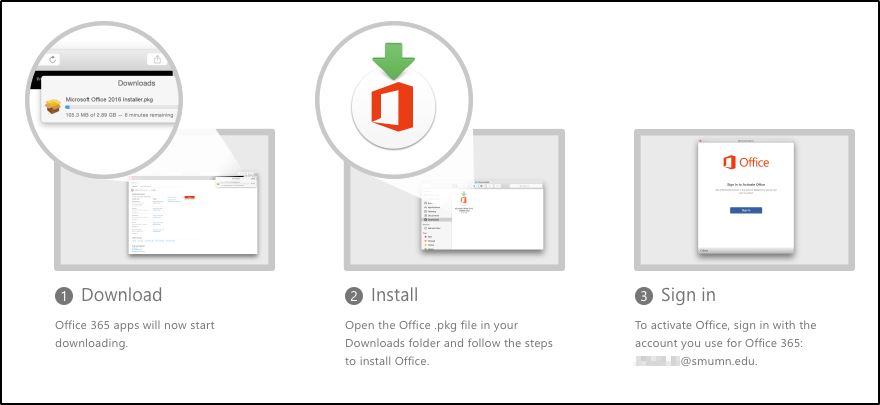
5. When the download completes, follow the onscreen instructions to use the installer. Don't forget to activate Office using the same credentials you used to log in to portal.office.com.
Windows:
Mac:
***Please note that SMUMN does not, at this time, support the use of Microsoft's One Drive. If you would like to store your files in the cloud and access them from multiple devices, we recommend using Google Drive's desktop application. Click here to learn more about using Google Drive with Microsoft Office files: Using Drive instead of a VPN/Network Drive (U:)